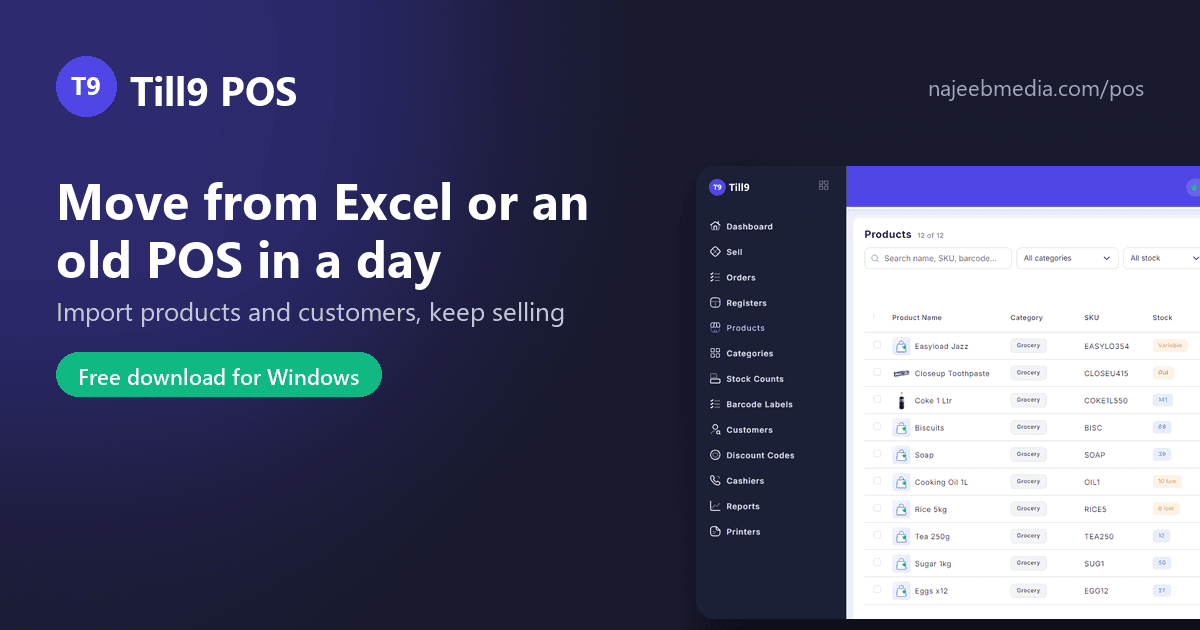
The reason most shops never change their POS is not the price of the new one. It is the thought of typing 600 products and 300 customers in again. With Till9 that part is a spreadsheet import, and a shop that has its lists in Excel, or can export them from the old system, is usually selling on the new till the same day. Here is the order of work.
Every POS, and every web POS, can export products and customers to Excel or CSV somewhere in its settings or reports. If it cannot, its vendor can, and you should insist, because it is your data. If your "system" is a notebook or a price list in WhatsApp, open a blank spreadsheet and type the columns below; two people can do 600 lines in an afternoon.
One row per product, with these headers in the first row (upper or lower case does not matter):
| Column | What goes in it |
|---|---|
name | Product name as the cashier should see it |
sku | Your short code. Used to match rows, so keep it unique |
barcode | The packet barcode, if any |
category | Category name; new names are created |
cost_price, price, sale_price | Cost, selling price, optional promotional price |
taxable | yes or no |
track_stock, stock_quantity, low_stock_threshold | Whether to count it, how many you have, when to warn |
description | Optional |
Extra columns are ignored, and a blank cell leaves the existing value alone, so a sheet with just sku and price is a valid way to update prices later. Go to Products, Import, choose the file, and Till9 creates new products and updates existing ones by SKU, then tells you how many of each.
Headers: name, phone, email, address, city, and points if your old system had a loyalty balance to carry over. Till9 matches by phone first, then email, so re-importing a corrected sheet never creates duplicates. Import from Customers, Import.
If the quantities in the sheet are trustworthy, you are done. If they are not, which is usual, leave stock_quantity blank, start selling, and run a Stock count at the end of the first quiet day: Till9 prints a count sheet by category, you type (or scan) what is on the shelf, and it sets the stock without losing the day's sales.
Many owners keep the old system open for one day and bill every sale on both. That is the right instinct: it costs an afternoon and proves the totals match before the old one is switched off. Keep the old system's export files; the history stays readable in Excel even after the subscription ends.
Old sales history. Till9 starts its reports from the day you go live. Supplier lists and purchase orders are not in Till9 either; most small shops keep those in WhatsApp and a notebook and that is fine.
Till9 is free for Windows, and the first 14 days open every feature, including stock counts and labels: najeebmedia.com/pos. Send us your sheets on WhatsApp at +92 312 7002376 if you want a hand with the first import.