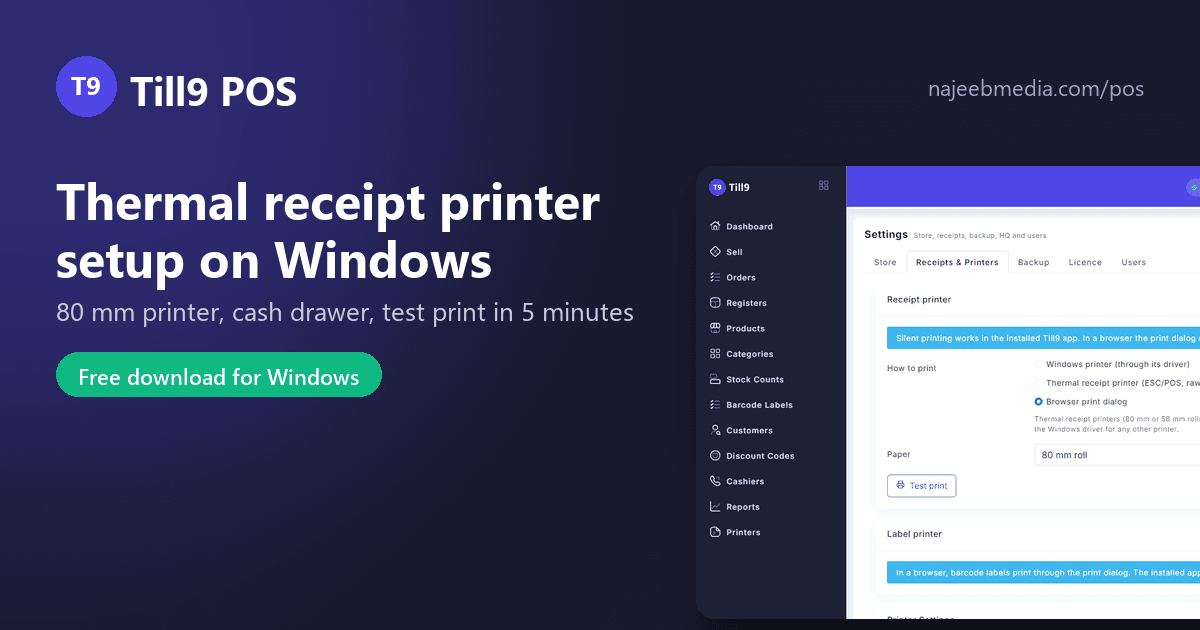
A thermal receipt printer is the one piece of hardware that makes a shop look like it has a real till, and it is also the piece that generates the most "it is not printing" calls. This guide sets one up with Till9 on Windows, from the box to the first receipt with the cash drawer popping open, in about five minutes.
What to buy
- An 80 mm thermal printer with USB. Any of the common "POS-80" style printers sold in Pakistan for PKR 12,000 to 35,000 works; they all speak the same ESC/POS language. 58 mm printers work too and use cheaper paper, but the receipt is narrow.
- A cash drawer with an RJ11 cable, which plugs into the printer, not the PC. The printer sends the pulse that opens it.
- Paper rolls: 80 mm wide (or 57 mm for a 58 mm printer). Keep two spare rolls under the counter.
You do not need a touch terminal or a special POS PC. Any Windows 10 or 11 laptop or desktop with a free USB port is enough.
Step 1: install the Windows driver
Plug the printer in, switch it on, and install the driver from the CD or the manufacturer's download page (most are labelled "POS-80 driver"). When it is done the printer appears under Windows Settings, Printers. Print the Windows test page once; if that comes out, the hard part is over.
Step 2: pick it in Till9
Open Till9, go to Settings, Receipts & Printers, and look at the Receipt printer card. Choose how to print:
- Windows printer (through its driver): the simplest. Pick the printer from the list, choose 80 mm or 58 mm paper, press Test print. Till9 prints silently, with no dialog, on every sale.
- Thermal receipt printer (ESC/POS, raw): faster and crisper, with a barcode of the receipt number and a partial cut at the end. Pick the same Windows printer, or enter the IP address of a network printer (port 9100) if it is on the shop LAN.
- Browser print dialog: only for a normal A4 or A5 printer, or when you want to pick a printer each time.
Set the number of copies (one for the customer, two if you keep a copy), and turn on Open cash drawer so the drawer opens on every cash sale. Press Open drawer once to check the cable.
Step 3: what prints on the receipt
Under Settings, Store you set the shop name, address and phone, a header line (most shops put the NTN or STRN here), and a footer line ("Exchange within 7 days with receipt"). Every receipt shows the items, quantities, discount, tax, total, cash tendered and change, the cashier and the receipt number. Under Receipts & Printers you choose whether a receipt prints on every sale, asks each time, or never.
When it does not print
- Nothing happens, no error: the printer is paused or offline in Windows. Open the printer in Windows Settings and clear the queue.
- Prints blank: the paper roll is in upside down. Thermal paper prints on one side only; flip the roll.
- Prints garbage characters: you chose ESC/POS for a printer that is not a thermal printer, or the wrong printer. Switch to the Windows driver mode.
- Receipt is cut off on the right: paper width is set to 80 mm on a 58 mm printer. Change it in the card.
- Drawer does not open: the RJ11 cable goes into the printer's drawer port, not the phone line port on the wall. Try Open drawer in the card; if the printer clicks but the drawer stays shut, the cable or the drawer solenoid is the problem.
Reprints and returns
Any past sale can be reprinted from the Orders page. A return prints a separate slip marked RETURN with the original receipt number and the refunded amount, through the same printer, and never opens the drawer by itself.
Till9 is free for Windows and the printer settings are available on every plan: najeebmedia.com/pos. If a printer refuses to behave, send a photo of the model label to +92 312 7002376 on WhatsApp.