WooCommerce doesn't give you a real bulk editor. You can edit one product at a time, fight with the CSV importer for anything more than a handful of rows, or pay for a plugin that adds yet another screen to learn. If you manage a catalog with real volume, that's not a workflow — it's a bottleneck.
This is the actual walkthrough for doing it from a spreadsheet you already know how to use: Google Sheets, connected directly to your store through BPS Cloud.
Open the BPS Cloud sidebar from a Google Sheet (Extensions → BPS Cloud) and click Connect. This uses WooCommerce's own wc-auth key exchange — you approve the connection from your own wp-admin, and BPS Cloud gets a scoped API key back. Nothing installs on your WordPress site, and nothing has standing access beyond what WooCommerce's own auth screen grants.
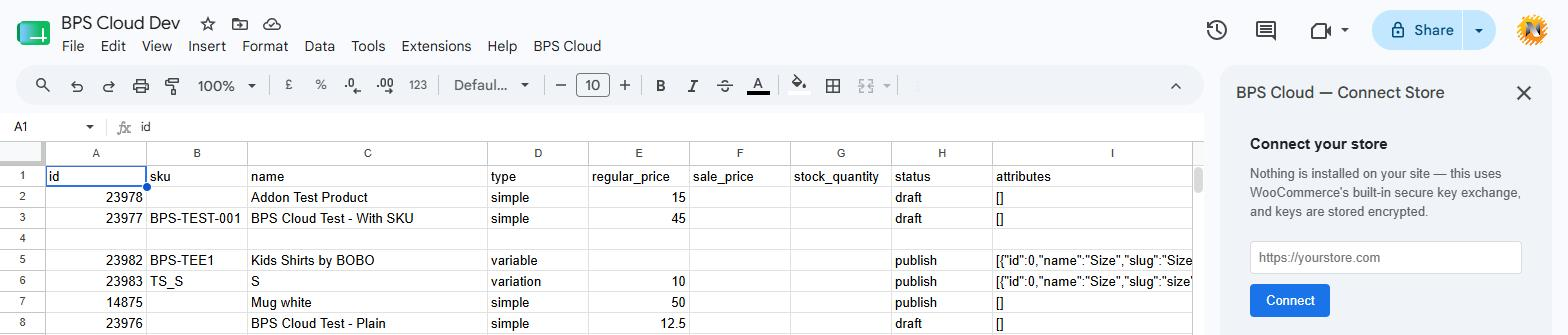
The Connect Store sidebar — one field, then you're redirected to approve access from your own wp-admin.
Once connected, BPS Cloud sets up a products tab automatically — bolded header row and everything — with the columns you actually need: id, sku, name, type, regular_price, sale_price, stock_quantity, status, attributes, categories, sync_status, sync_message. Fetch your existing catalog in and it's just a spreadsheet now: sortable, filterable, and editable with formulas like anything else in Sheets.

Fetch Products (store → sheet) is what pulls your existing catalog in — everything else happens from this same menu.
Because it is one. Bump every regular_price in a category by 10% with a formula. Find-and-replace a stock number across a few hundred rows. Fill down a new attribute value. This is the entire point of the sheet-based workflow — you're not filling out a form for every product.
Hit sync and BPS Cloud writes every row back to WooCommerce — but the part that matters is what it does not do: guess. Matching runs in a strict order: an explicit product id, then a stored row-link from a previous sync, then an exact sku match. If a SKU matches more than one product, that row gets a clear per-row error instead of silently syncing to the wrong product or creating a duplicate.
Every row gets a real result in the sync_status and sync_message columns — ok, or exactly why it wasn't. We've seen this catch real WooCommerce quirks other tools miss silently: for example, WooCommerce will sometimes reject a sale_price update outright (e.g. when it's not lower than the regular price) and just return success anyway. BPS Cloud checks what WooCommerce actually stored against what you sent, and if they don't match, that row is flagged sale_price_rejected with a clear message — not a false "ok" that leaves you thinking the price changed when it didn't.

sync_status and sync_message — a real result on every row, not just an overall "done."
Once the manual workflow feels right, the Automation sidebar has two switches:
Both run through the same matching and status-reporting logic as a manual sync — automation doesn't mean less visibility into what happened.
BPS Cloud is free to install from the Google Workspace Marketplace. If you're already using the WordPress plugin, connecting is a one-click migration — see our first look at BPS Cloud for the full backstory on why we rebuilt it. Questions about a specific catalog or migration? Contact us.
Prefer the WordPress plugin? See the Bulk Product Sync plugin page for pricing and details.